Developer Portal Guide
Creating the Bot
Before writing any code, we need to create the bot account that our application will use.
To get started, open the Discord Developer Portal by clicking here and sign in with your discord account if you haven’t.
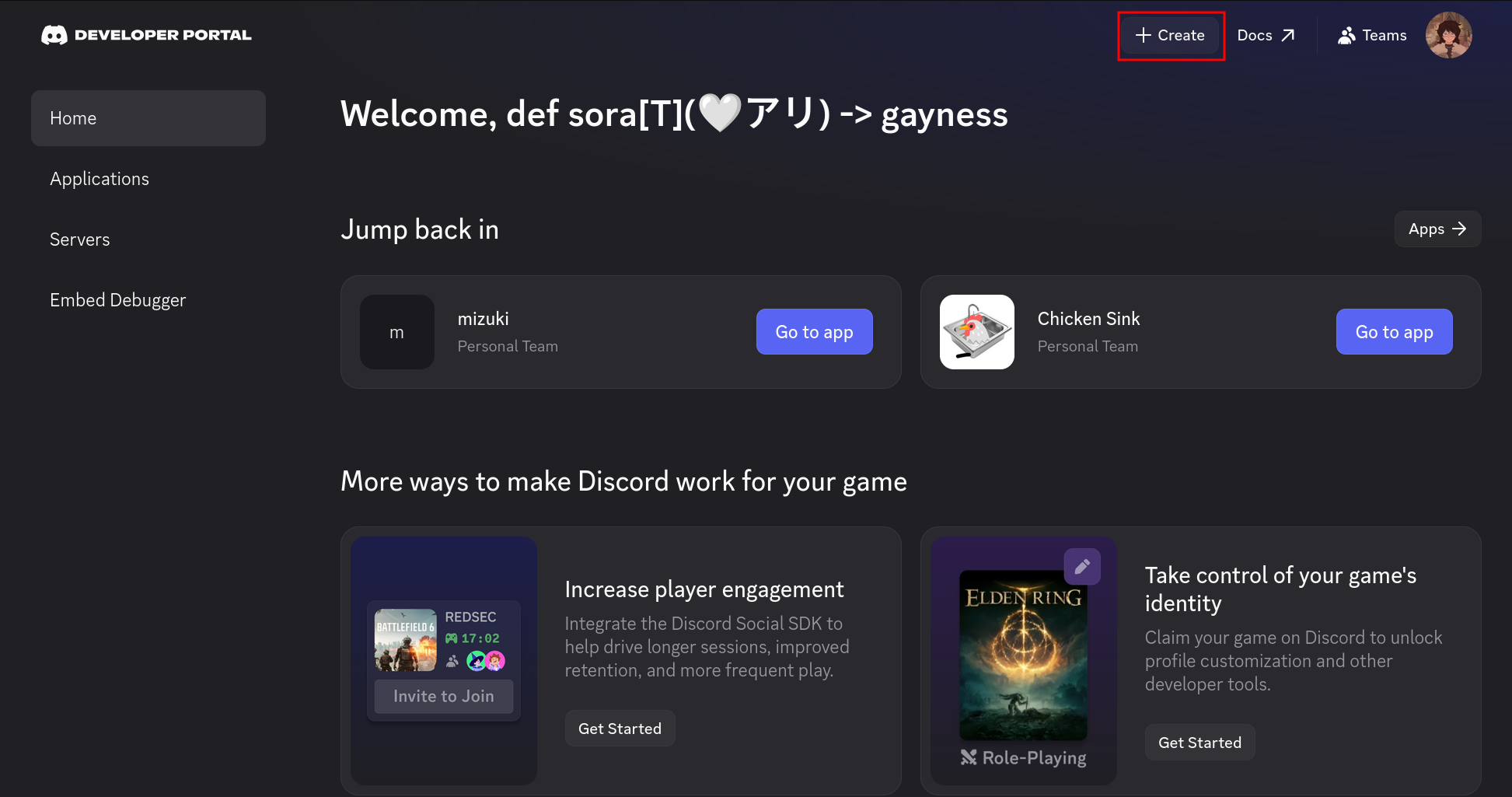
On the home page click on the “Create App” button in the top right.
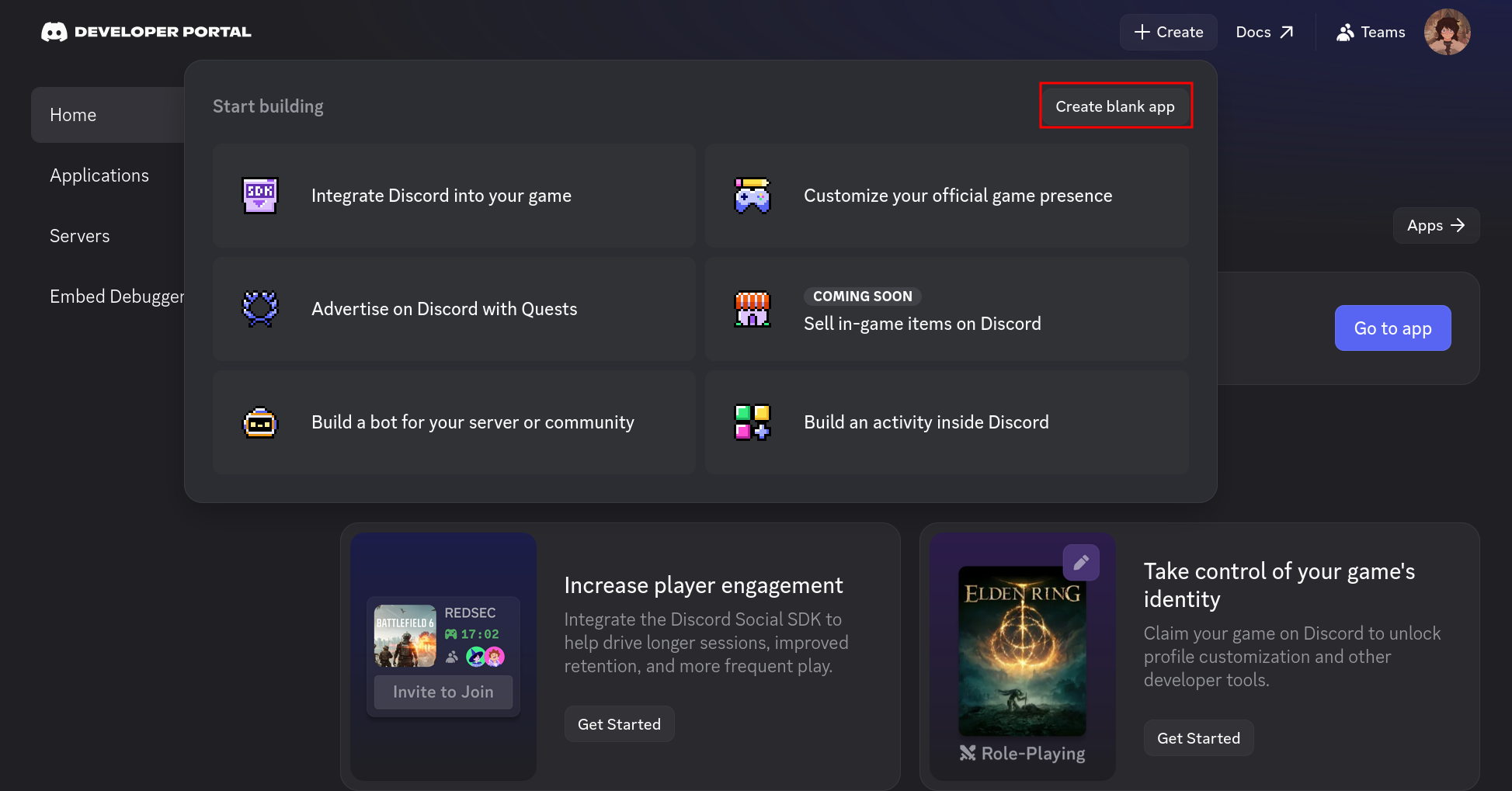
Click on “Create Blank App” in the top right of the menu that opens.
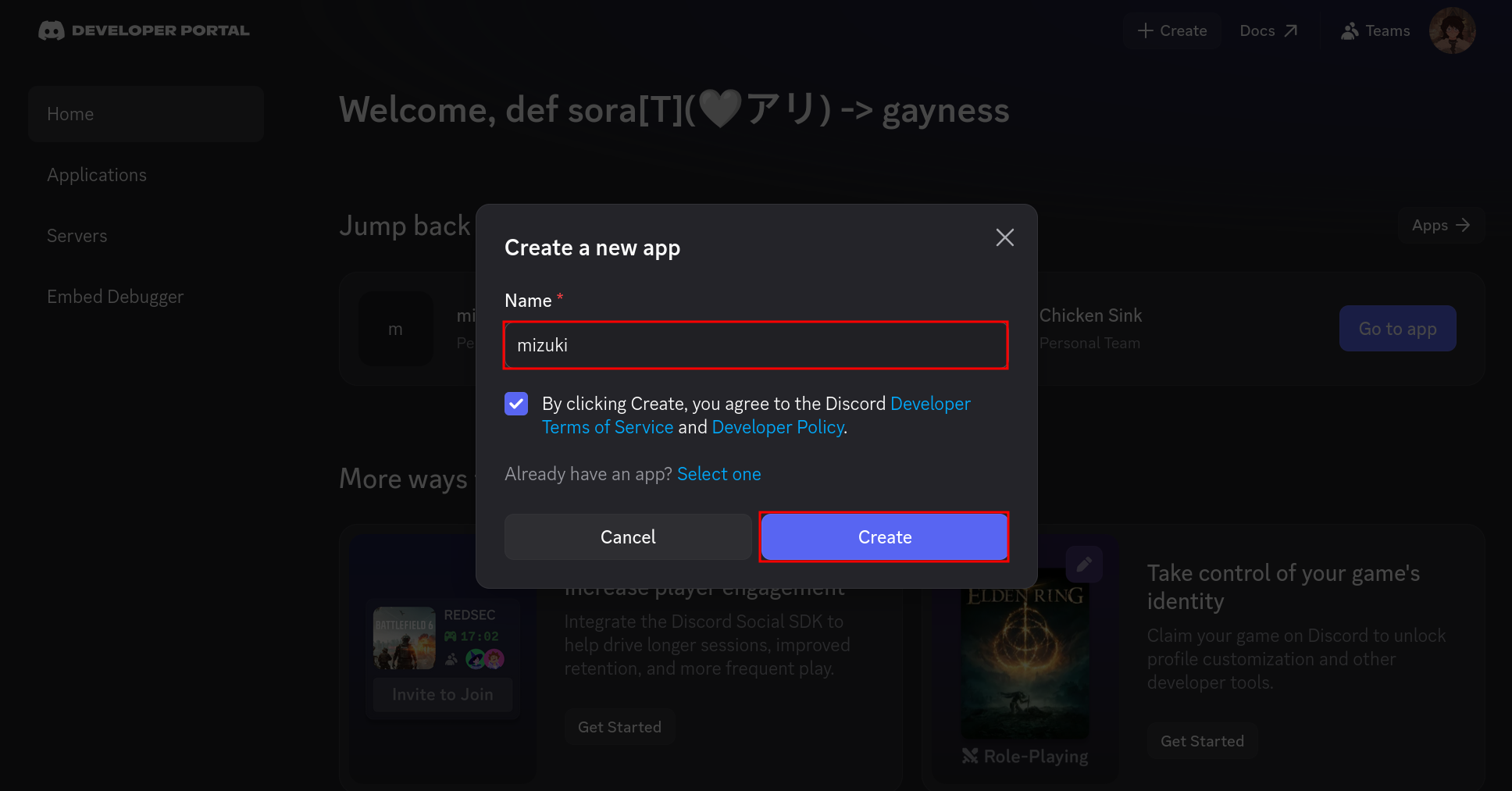
Choose a name for your bot, accept Discord’s Terms of Service, then click Create.
Inviting the Bot
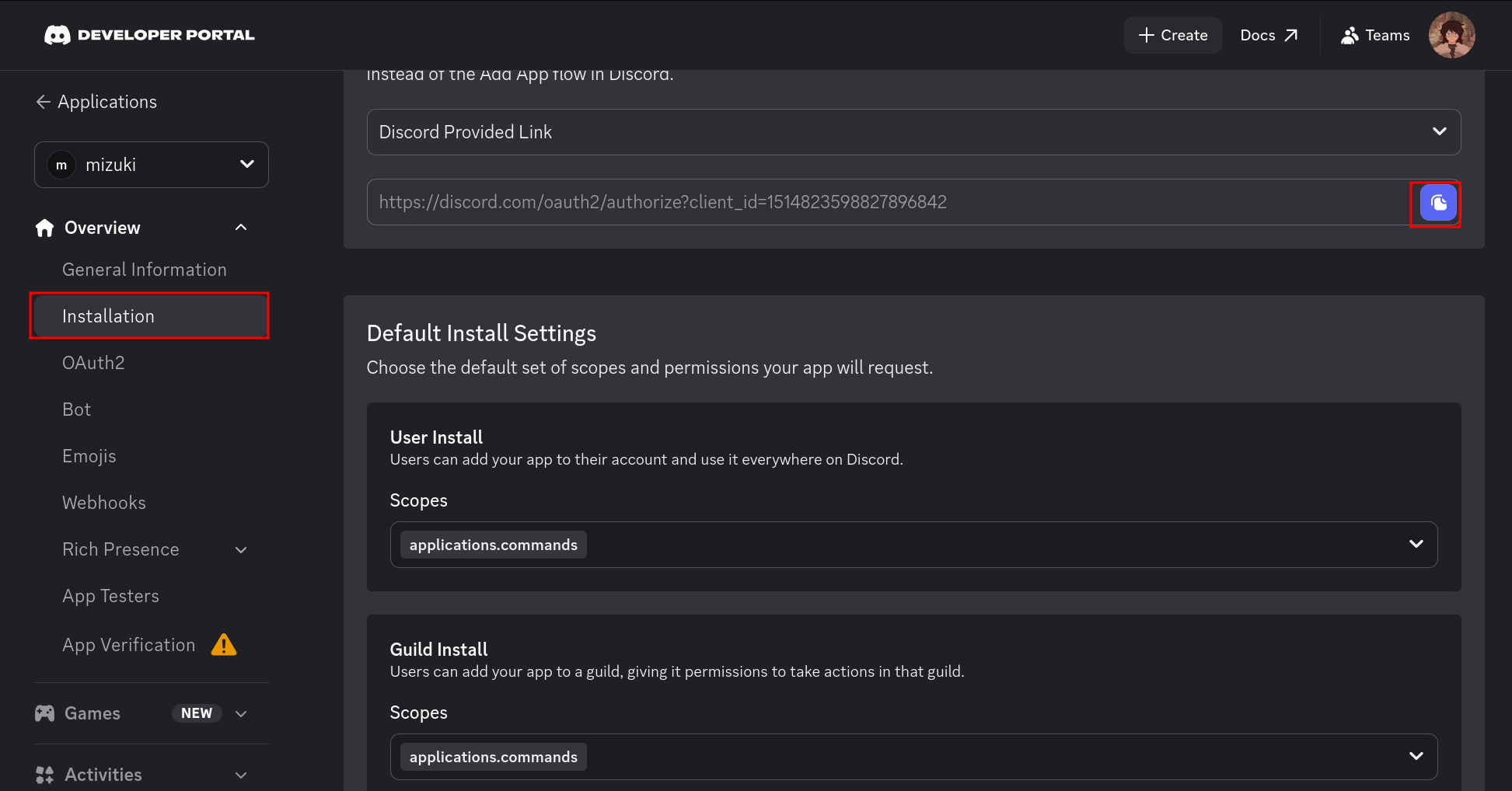
To invite your bot, open the Installation section of your application, click the Copy button next to the invite link, then open the copied URL in your browser.
To allow your bot to appear as a member in servers, add the bot scope in Guild Install under Default Install Settings.
Getting your Token
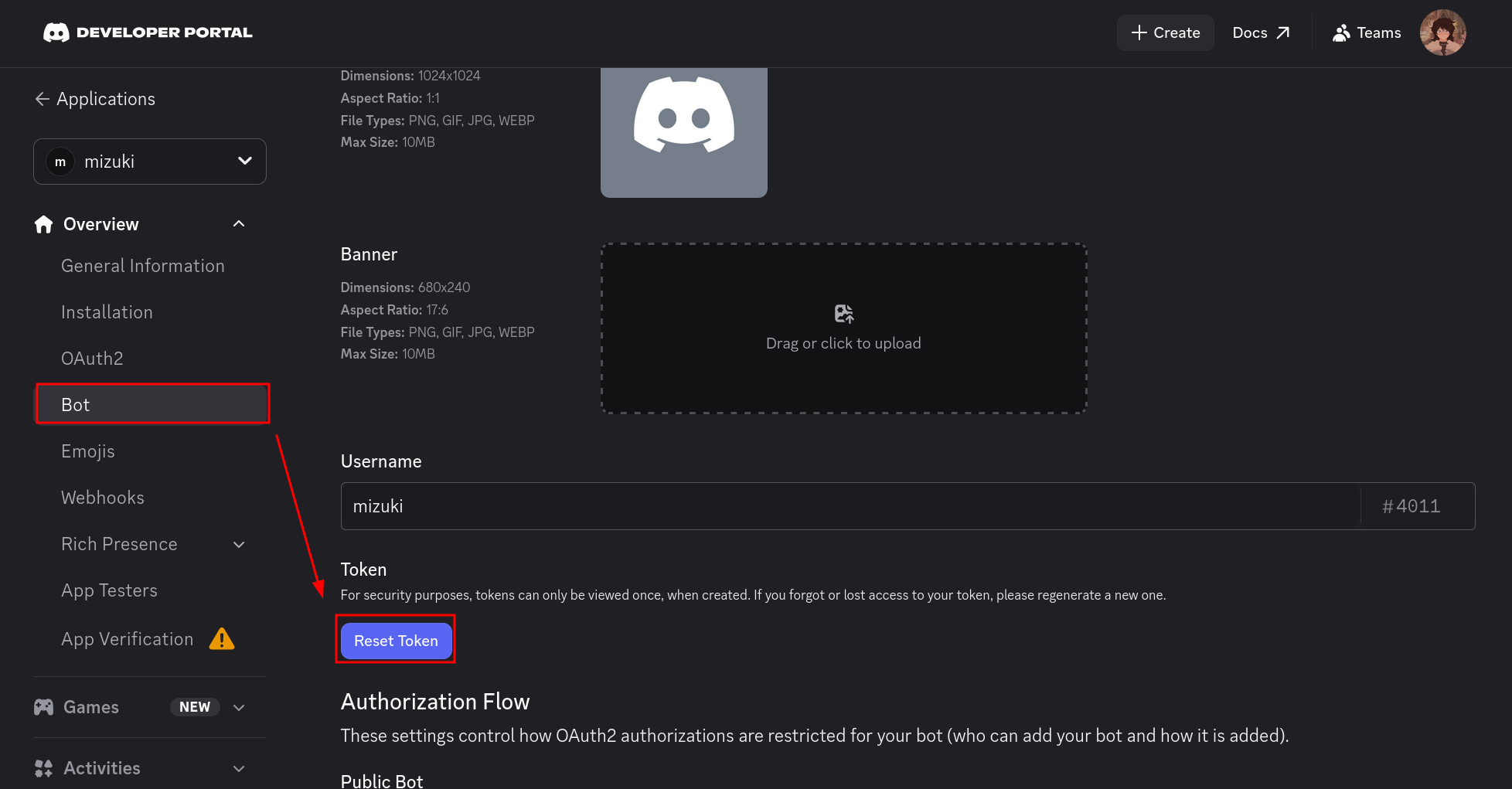
To get your bot’s token, open the Bot section of your application and click Reset Token. You token is only shown once, so copy and save it somewhere safe!
Important
Do not under any circumstances share your bot’s token with others. It is basically the password to your bot and anyone with it can use the bot account for malicious activities.
Discord Staff will also never ask you for your bot token!
If you think that someone might have access to your token, reset it immediately.